Begin with a guide on the fastest path to a successful outcome
Describe how someone begins using your product. What is the first thing they need to do? Are there any prerequisites?A quickstart should take someone from zero to using your product. They’ll get a quick win and a sense of what they can accomplish.
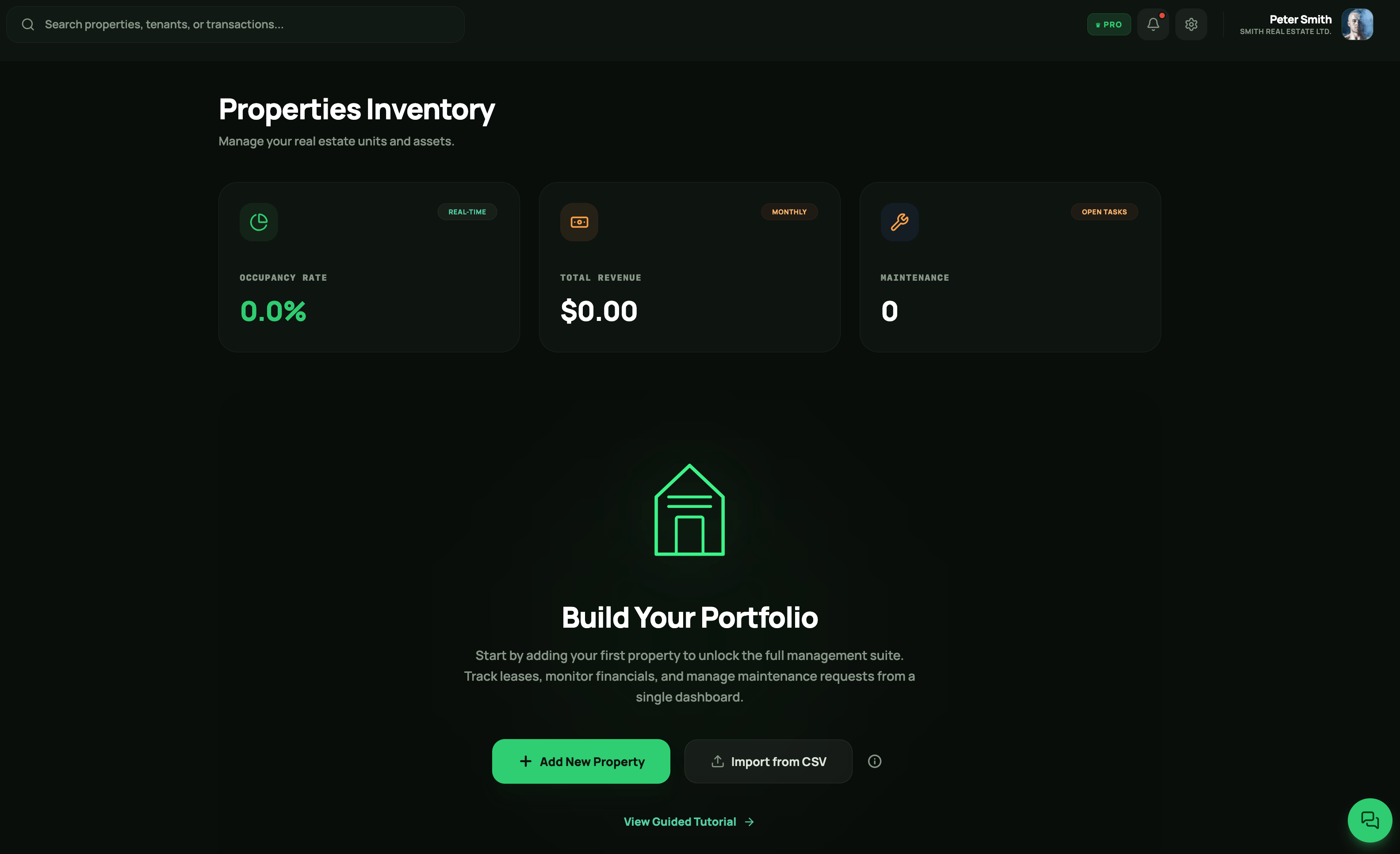
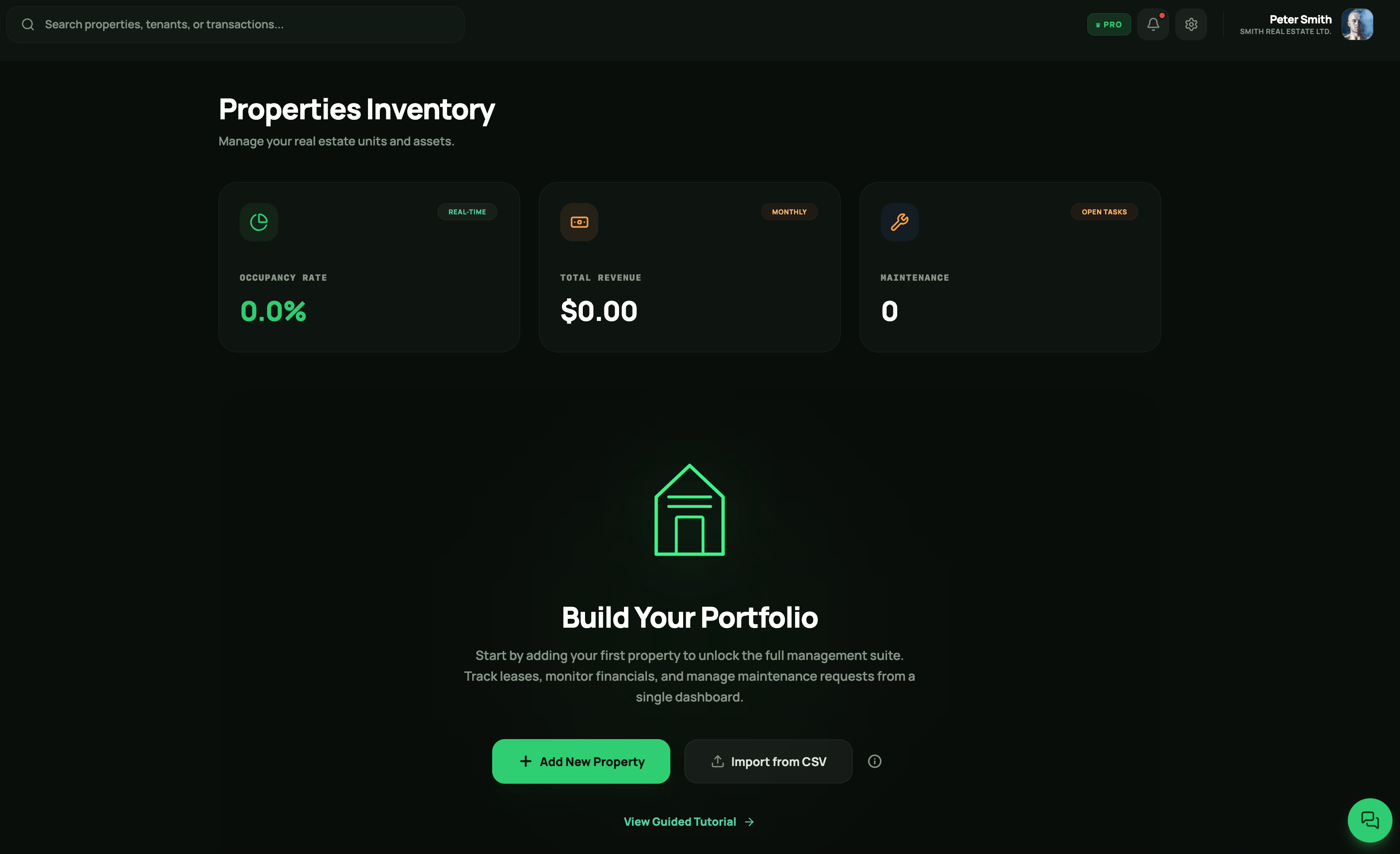
Follow the instructions in the Properties Inventory page to add your first Property item.
2
Configure & Manage
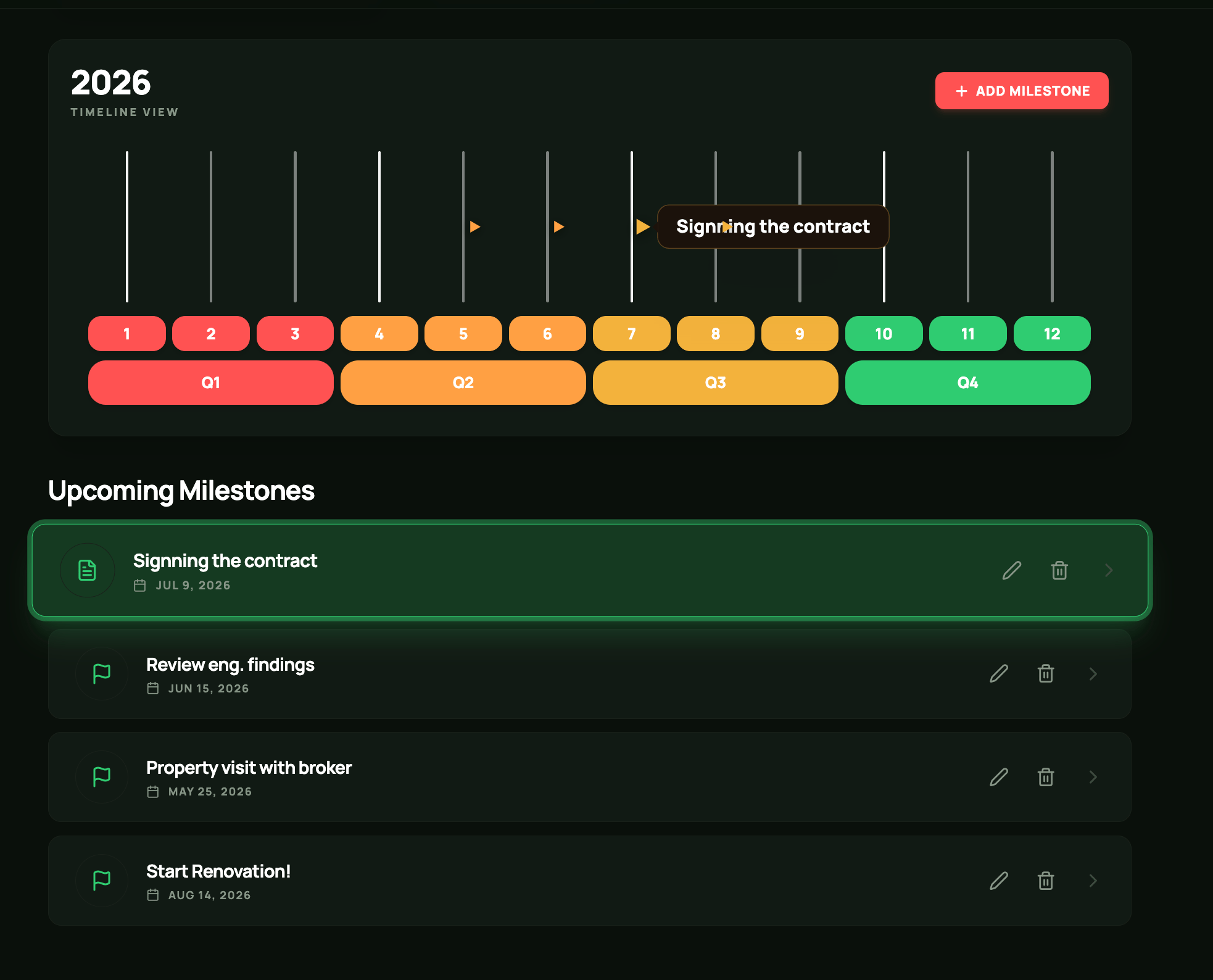
Click on the property item created in Step 1. Based on the selected status phase, define the relevant milestones, tasks, and expenses.Once the PLAN and WORK phases are completed, or if the property was initially set to READY, you can define and manage your tenants. Optionally, sync your Airbnb, Booking.com, and Agoda calendars with the PropertyGenius calendar to keep your rental information organized in one place!
Defining Property Milestones
3
Financial Perforance
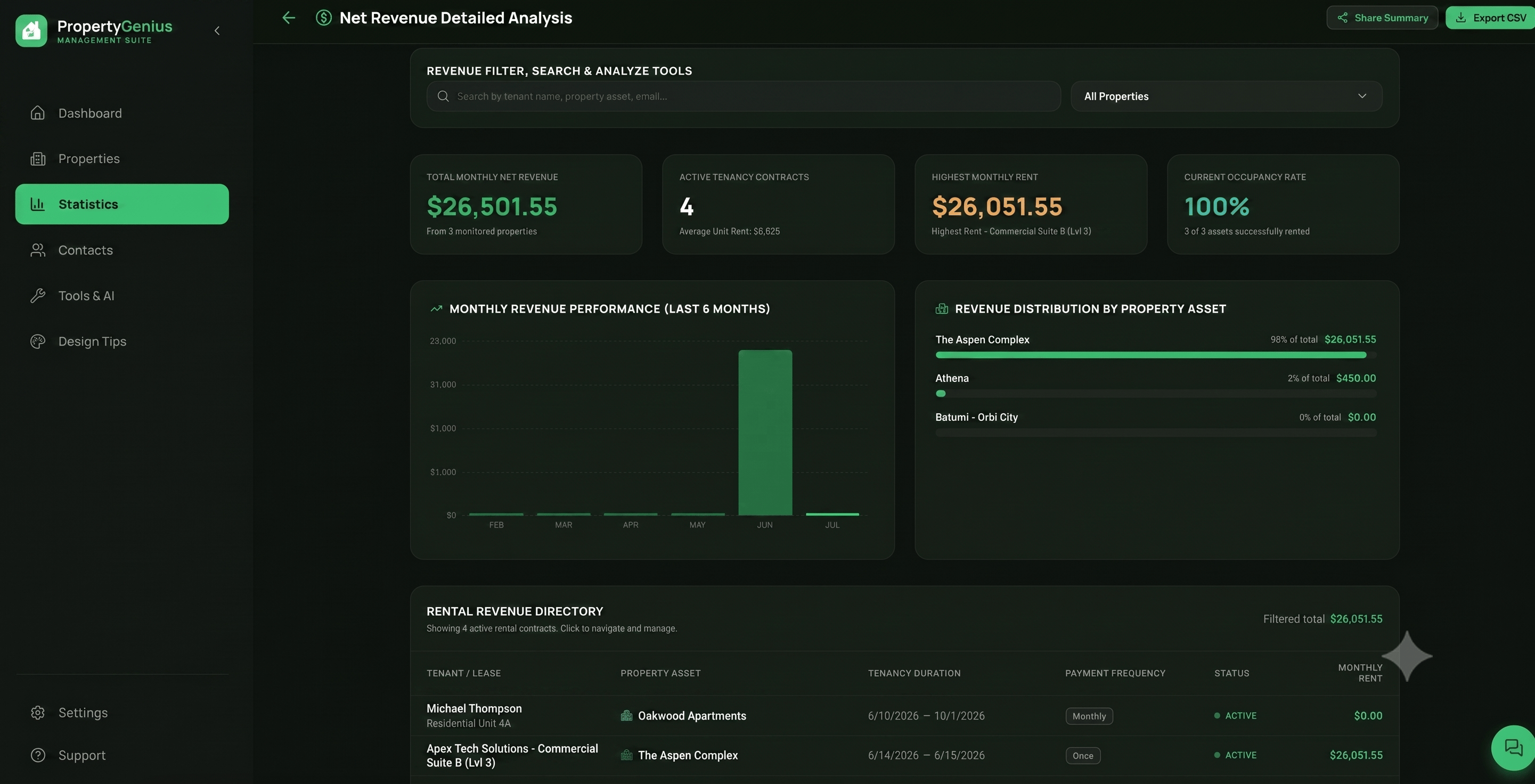
Track your expenses, payouts, and financial performance using the Statistics charts available in each property’s Expenses tab or through the main Statistics dashboard.